Here’s a complete guide to setting up PHP, MySQL, and Nginx on WSL2 Ubuntu on Windows — and calling it all from Windows.
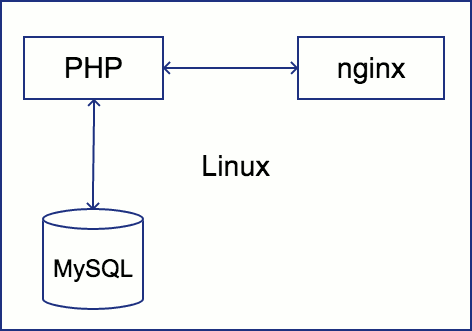
The architecture is: your code lives in WSL Ubuntu, Nginx serves it on a local port, and you access it from Windows via localhost or a custom hostname.
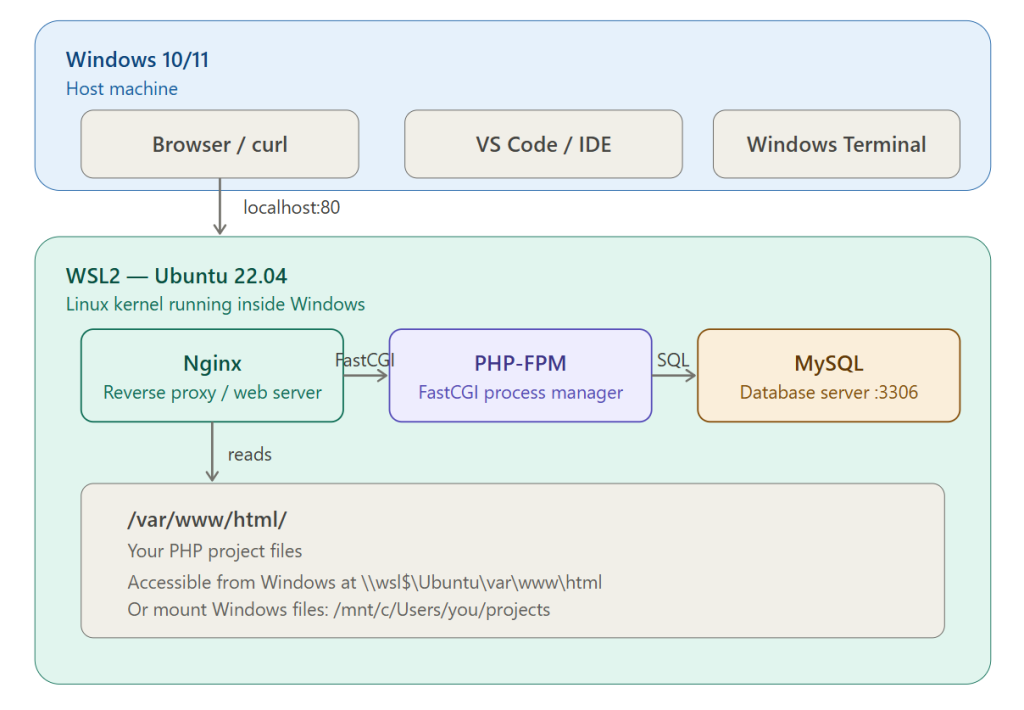
Let me show the full setup visually first, then walk through each step.Now let’s go step by step.
Step 1 — Install WSL2 + Ubuntu
Open PowerShell as Administrator on Windows:
wsl --install
This installs WSL2 and Ubuntu 22.04 by default. Restart when prompted. Then open Ubuntu from the Start menu and create your Linux username/password.
Verify it’s running WSL2 (not WSL1):
wsl -l -v
Step 2 — Update Ubuntu
Inside the Ubuntu terminal:
sudo apt update && sudo apt upgrade -y
Step 3 — Install Nginx
sudo apt install nginx -y
sudo service nginx start
Test it: open your Windows browser and go to http://localhost — you should see the Nginx welcome page.
Step 4 — Install PHP and PHP-FPM
sudo apt install php php-fpm php-mysql php-cli php-mbstring php-xml php-curl -y
Check the version installed:
php -v
Start PHP-FPM (replace 8.x with your actual version, e.g. 8.3):
sudo service php8.3-fpm start
Step 5 — Install MySQL
sudo apt install mysql-server -y
sudo service mysql start
sudo mysql_secure_installation
Follow the prompts to set a root password and secure the install. Then log in and create a database:
sudo mysql -u root -p
CREATE DATABASE myapp;
CREATE USER 'myuser'@'localhost' IDENTIFIED BY 'mypassword';
GRANT ALL PRIVILEGES ON myapp.* TO 'myuser'@'localhost';
FLUSH PRIVILEGES;
EXIT;
Step 6 — Configure Nginx to use PHP-FPM
Create a site config:
sudo nano /etc/nginx/sites-available/myapp
Paste this (adjust php8.3 to your version):
server {
    listen 80;
    server_name localhost;
    root /var/www/html;
    index index.php index.html;

    location / {
        try_files $uri $uri/ =404;
    }

    location ~ \.php$ {
        include snippets/fastcgi-php.conf;
        fastcgi_pass unix:/run/php/php8.3-fpm.sock;
    }
}
Enable it and reload:
sudo ln -s /etc/nginx/sites-available/myapp /etc/nginx/sites-enabled/
sudo rm /etc/nginx/sites-enabled/default
sudo nginx -t
sudo service nginx reload
Step 7 — Test PHP is working
echo "<?php phpinfo(); ?>" | sudo tee /var/www/html/index.php
Visit http://localhost in your Windows browser — you’ll see the PHP info page.
Step 8 — Auto-start services (important!)
WSL2 doesn’t run systemd by default, so services stop when you close the terminal. Fix this by adding a startup script.
Option A — Enable systemd (Ubuntu 22.04+, recommended):
Edit /etc/wsl.conf:
sudo nano /etc/wsl.conf
Add:
[boot]
systemd=true
Restart WSL: in PowerShell run wsl --shutdown, then reopen Ubuntu. Now you can use:
sudo systemctl enable nginx mysql php8.3-fpm
Option B — Manual start alias (simpler, no restart needed):
Add to your ~/.bashrc:
alias start-stack='sudo service nginx start && sudo service mysql start && sudo service php8.3-fpm start'
Calling from Windows
| What you want | How |
|---|---|
| Open the site | Browser → http://localhost |
| Custom hostname | Add 127.0.0.1 myapp.local to C:\Windows\System32\drivers\etc\hosts, then use server_name myapp.local; in Nginx |
| Edit files in VS Code | code /var/www/html from WSL terminal (VS Code Remote WSL extension) |
| Browse files in Explorer | Navigate to \\wsl$\Ubuntu\var\www\html |
| Connect MySQL from Windows | Use TablePlus/DBeaver with host 127.0.0.1, port 3306 |
| Run PHP from Windows Terminal | Open a WSL tab and run php script.php |
Quick troubleshooting
- Port 80 already in use → Windows may have IIS running. Disable it in “Turn Windows features on or off”, or change Nginx to
listen 8080. - Services not running after reboot → Enable systemd (Option A above) or run
start-stackalias. - Nginx config errors → Always run
sudo nginx -tbefore reloading. - MySQL access denied → Make sure you’re connecting with the user you created, not root.